Jekyll Setup: Run the Dev Server and Create Content
Configure your Docker-first Jekyll development environment. Start the development server, create content, and customize your theme.
Table of Contents
Jekyll Setup
Start your Docker-based Jekyll development server and create your first content. No local Ruby installation needed — everything runs inside the container.
flowchart LR
    A([Repo cloned]) --> B[docker compose up]
    B --> C{First run?}
    C -->|Yes| D[bundle install\n~2 min]
    C -->|No| E[Gems already cached]
    D --> E
    E --> F[Jekyll server starts]
    F --> G([localhost:4000 🎉])
Prerequisites
Complete Machine Setup first (Docker Desktop, Git, GitHub CLI).
Step 1 — Clone the Repo
If you haven’t cloned yet:
gh repo clone bamr87/zer0-mistakes
cd zer0-mistakes
Or if you used the install wizard, you’re already in the right directory.
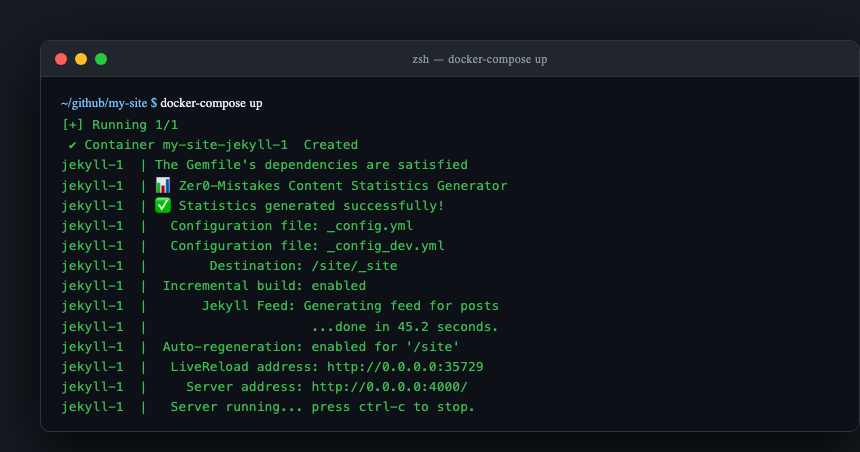
Step 2 — Start the Dev Server
docker compose up
On first run, Docker:
- Pulls the Jekyll image (≈ 1–2 min)
- Runs
bundle installinside the container - Starts Jekyll with live reload
Content statistics are not regenerated on start —
_data/content_statistics.ymlis committed and read directly. Refresh it withrake stats:generate(or_data/generate_statistics.sh) after you add content.
Your site is available at http://localhost:4000.
Step 3 — Check Site Health
docker compose exec jekyll bundle exec jekyll doctor \
  --config '_config.yml,_config_dev.yml'
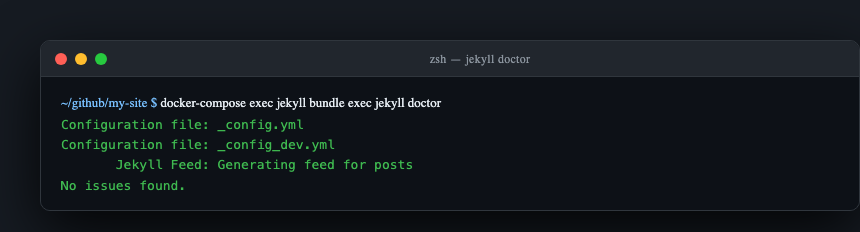
Expected output:
Configuration file: /site/_config.yml
Configuration file: /site/_config_dev.yml
            Source: /site
       Destination: /site/_site
 Incremental build: enabled
      Generating... done in X seconds.
Incremental build: enabled comes from _config_dev.yml; without that second config the line is absent.
Essential Commands
# Start server (foreground — shows live logs)
docker compose up

# Start detached
docker compose up -d && docker compose logs -f

# Stop server
docker compose down

# Force rebuild (after Gemfile or Dockerfile changes)
docker compose down && docker compose up --build

# Shell into the container
docker compose exec jekyll bash

# Build for production (no watch)
docker compose exec -T jekyll bundle exec jekyll build \
  --config '_config.yml,_config_dev.yml'
Configuration Files
The theme uses two layered configs — dev overrides production:
_config.yml (production)
title: "Your Site Title"
description: "Your site description"
url: "https://yourdomain.com"
baseurl: ""

remote_theme: "bamr87/zer0-mistakes"

plugins:
  - github-pages
  - jekyll-remote-theme
  - jekyll-feed
  - jekyll-sitemap
  - jekyll-seo-tag
  - jekyll-paginate
  - jekyll-relative-links
  - jekyll-redirect-from
  - jekyll-include-cache
_config_dev.yml (development overrides)
url: "http://localhost:4000"
baseurl: ""

# Use local theme files instead of remote
theme: "jekyll-theme-zer0"
remote_theme: false

livereload: true
incremental: true
show_drafts: true
future: true
Bootstrap 5.3.3 is vendored in
assets/vendor/— there are nobootstrap:config keys.
Create Your First Post
Posts live in pages/_posts/. Filename format: YYYY-MM-DD-slug.md.
cat > pages/_posts/$(date +%Y-%m-%d)-my-first-post.md << 'EOF'
---
title: "My First Post"
description: "Hello from zer0-mistakes"
date: 2026-05-30T00:00:00.000Z
layout: article
tags: [hello-world]
categories: [Blog]
---
Hello, world! This is my first post.
EOF
Jekyll picks it up immediately (live reload refreshes the browser).
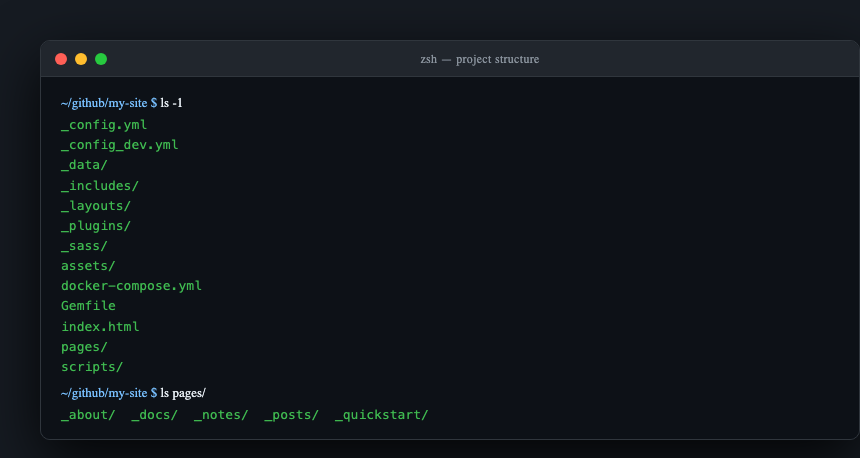
Project Structure
zer0-mistakes/
├── _config.yml          # Production config
├── _config_dev.yml      # Dev overrides (loaded by docker compose)
├── docker-compose.yml   # Container definition
├── pages/
│   ├── _posts/          # Blog posts
│   ├── _docs/           # Documentation pages
│   └── _quickstart/     # This guide
├── _layouts/            # Page templates
├── _includes/           # Reusable components
├── _sass/               # Sass partials
└── assets/
    ├── css/             # Compiled CSS + custom overrides
    ├── js/              # JavaScript modules
    └── vendor/          # Bootstrap 5.3.3 (vendored)
Custom Styles
Add your styles in _sass/custom.scss (compiled into assets/css/main.css):
// _sass/custom.scss
:root {
  --bs-primary: #0d6efd;   // override Bootstrap primary color
}

.my-hero {
  background: linear-gradient(135deg, var(--bs-primary), var(--bs-secondary));
}
Or add assets/css/user-overrides.css and set user_overrides: true in _config.yml. The theme then links it after main.css, so your rules win without editing any include. (Without that flag the file ships but is never loaded.)
Troubleshooting
Container won’t start
docker compose logs jekyll
docker compose down && docker compose up --build
bundle install errors
docker compose exec jekyll bundle install --retry 3
Page not found / old content
docker compose exec jekyll bundle exec jekyll clean
docker compose restart
Permission errors (Linux)
sudo chown -R $USER:$USER .